Keeps your PC fast, clean and yours.
WinBastion is a free, always-on service for Windows 11 and 10. It removes what slows you down, keeps Windows from quietly flipping your settings back, explains what is wrong in plain words, and can put anything it changed back exactly as it was.
all reversible, one switch each
direct from the NTFS master file table
Eight jobs, one quiet service in the background
A Windows service does the work and a tray app shows it. The dashboard opens in a second; the service idles at about 30 MB.
Plan & Apply
223 tested rules in Safe, Advanced and Expert tiers: bloatware, telemetry tasks, idle services, ads. Preview first, apply with a restore point.
Guard
Keeps your settings the way you set them: registry, startup entries, Defender configuration and the event log. Tells you when Windows changes something back, and offers to put it right.
Health & Posture
Disk, memory, battery wear, pending reboots, crash events and a security posture score, explained in sentences rather than codes.
Disk explorer
A TreeSize-class analyser that reads the NTFS master file table directly. Tree, treemap, largest files, types, ages and growth since last scan.
Defragmenter
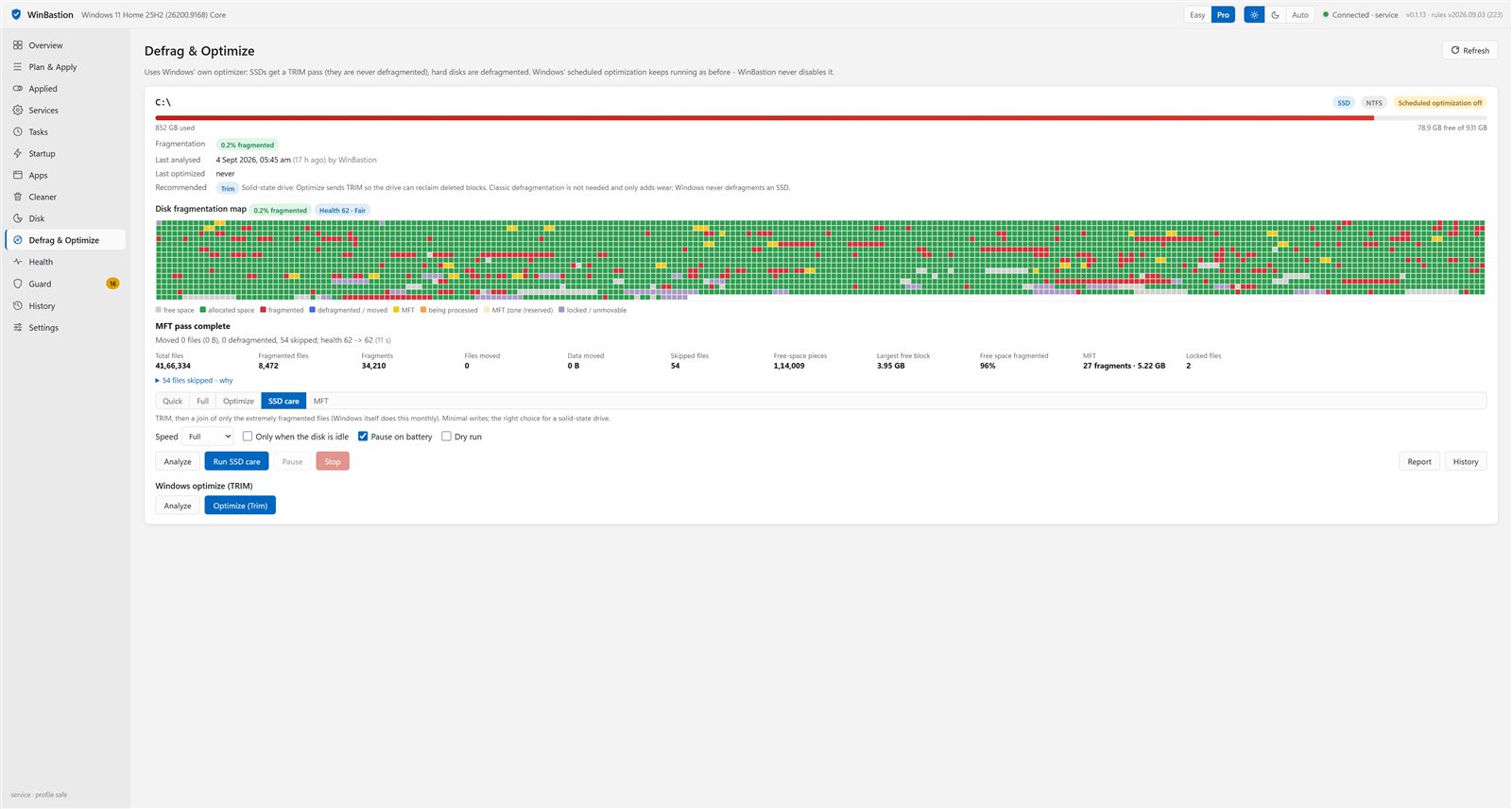
A real cluster-level defragmenter with a live map: Quick, Full, Optimize, SSD care and MFT modes, background I/O, report and history.
Services, tasks, startup
Every service with a plain-language write-up and advice, Start, Stop and start-type controls, scheduled tasks, and startup entries with signature checks.
Apps you actually use
Usage score, pattern and last-used date for every installed app from Windows' own launch records, a web description, and a clean uninstall.
Updates itself
Checks the public release feed, verifies the SHA-256, installs silently and restarts the tray. Roll back to any earlier version from the Versions panel.
Easy for the family. Pro for you.
Switch with one click. Each mode keeps its own look: six colour themes, light, dark or follow Windows, text size and density.
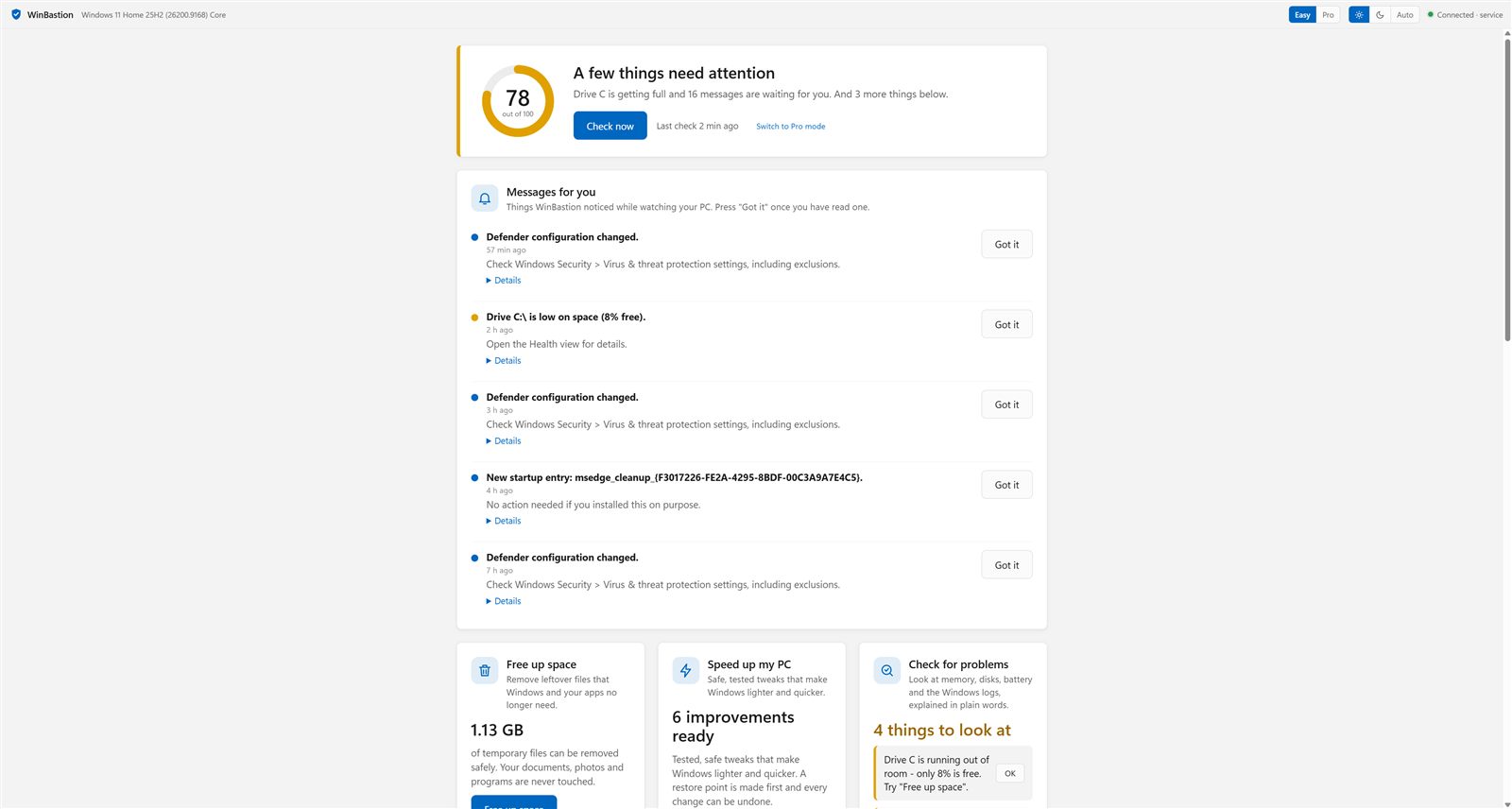
One page, plain words, big buttons
A verdict at the top, messages worth reading, and six things a person can do: free up space, speed up, check for problems, keep it protected, see what is using the disk, undo.
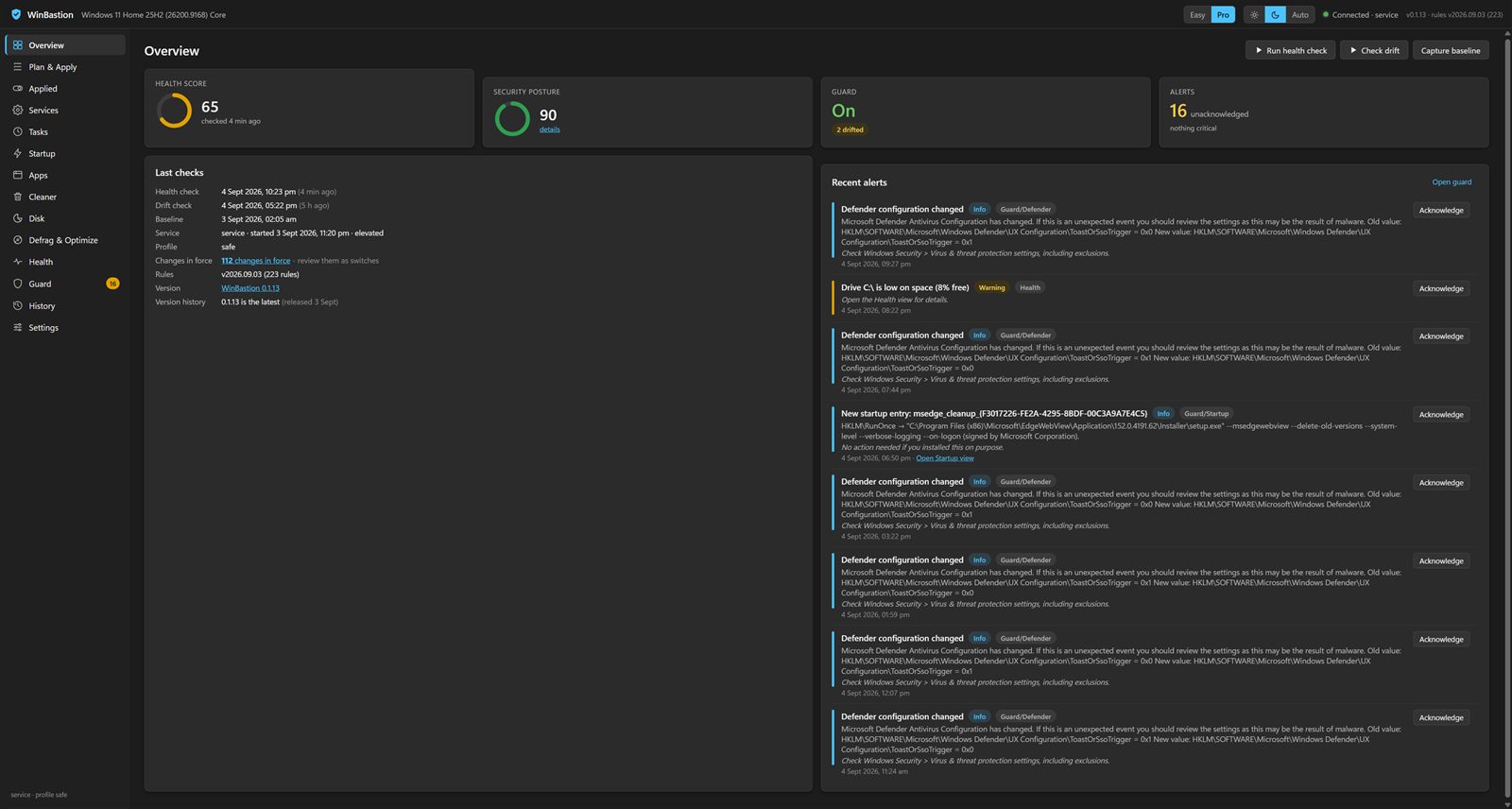
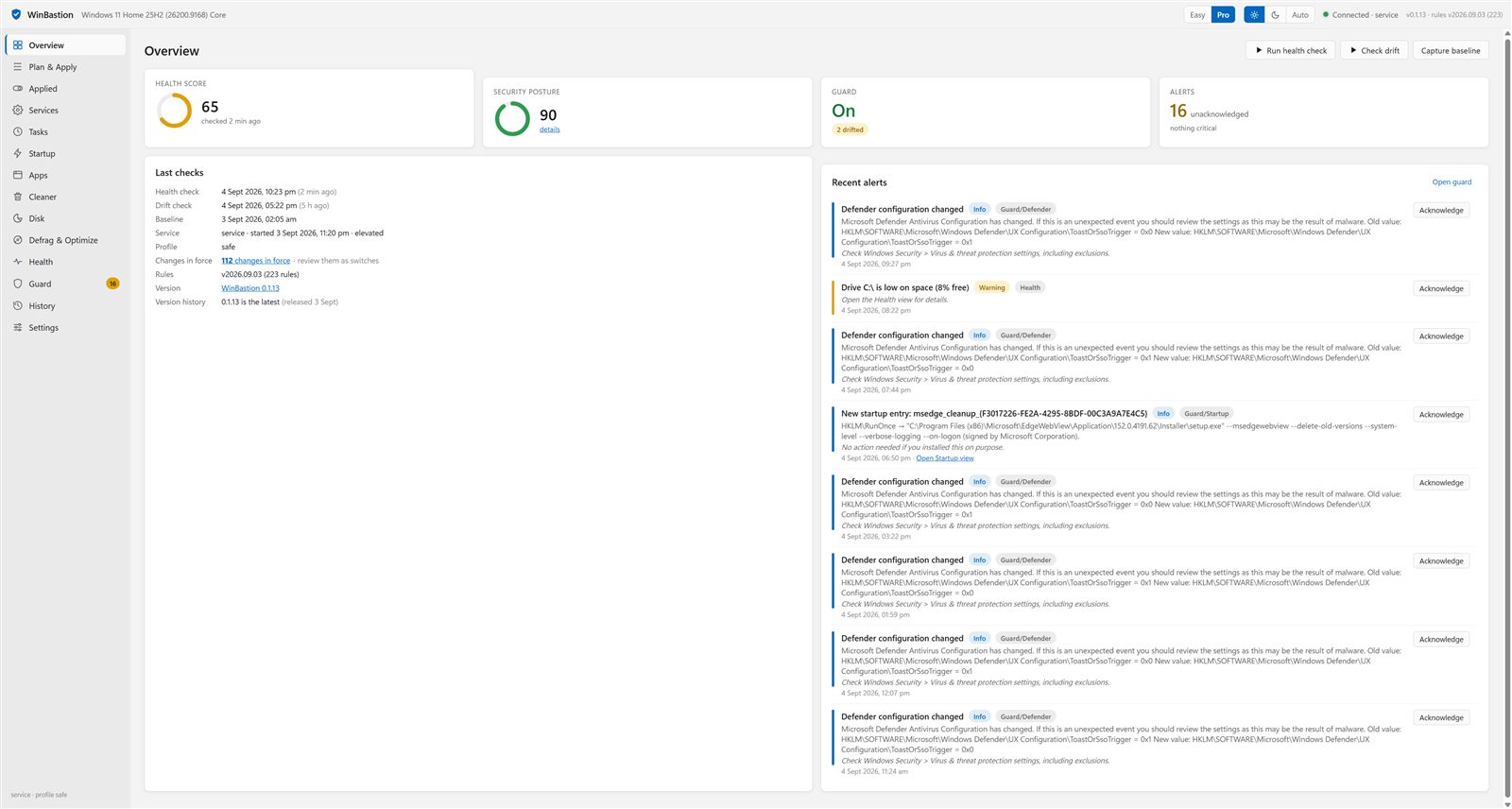
Every view, every detail, every switch
Fourteen views with sortable grids, expandable rows, journals, drift checks, baselines, a cluster map and a command line for the same operations.
Windows changes things back. WinBastion notices.
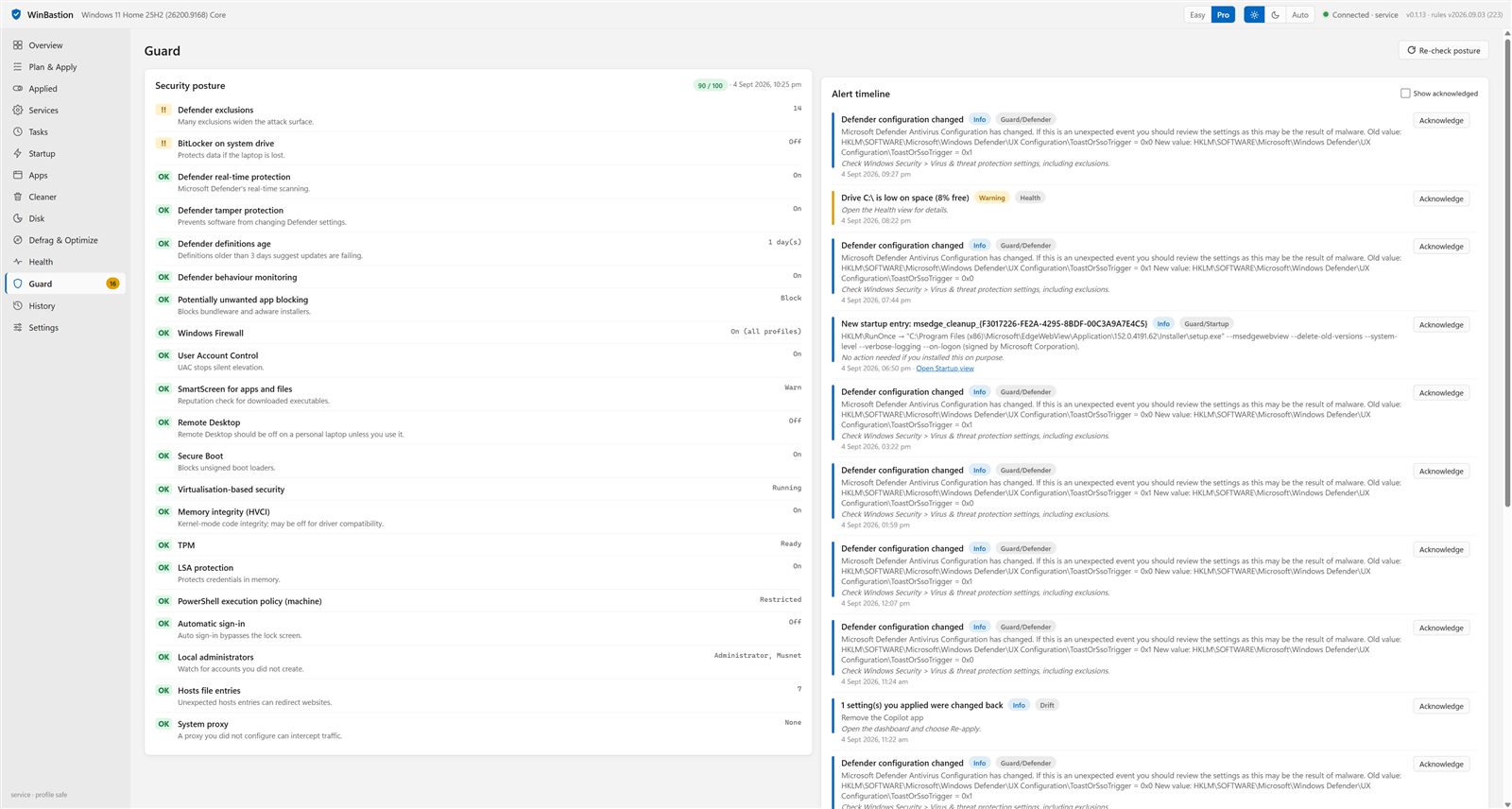
Feature updates re-enable telemetry tasks, reinstall apps you removed and flip privacy toggles. The guard keeps a baseline, checks for drift, and shows exactly what moved, with a one-click re-apply or a permanent “leave it”.
- Registry, file and event-log checks with plain-language alerts
- New startup entries flagged, with publisher and signature
- Defender configuration changes surfaced the minute they happen
See where the space went. Then do something about it.
The disk explorer reads the master file table, so a full drive maps in seconds and re-opens instantly. The defragmenter is the real thing: a live cluster map, five modes, background priority, pause on battery, a report of the worst files and a history of every run.
- SSDs get TRIM and only the extreme cases; it refuses to wear them out
- Restore points stay safe: moves are aligned when shadow copies exist
- Health score, free-space fragmentation and locked-file reasons in one grid
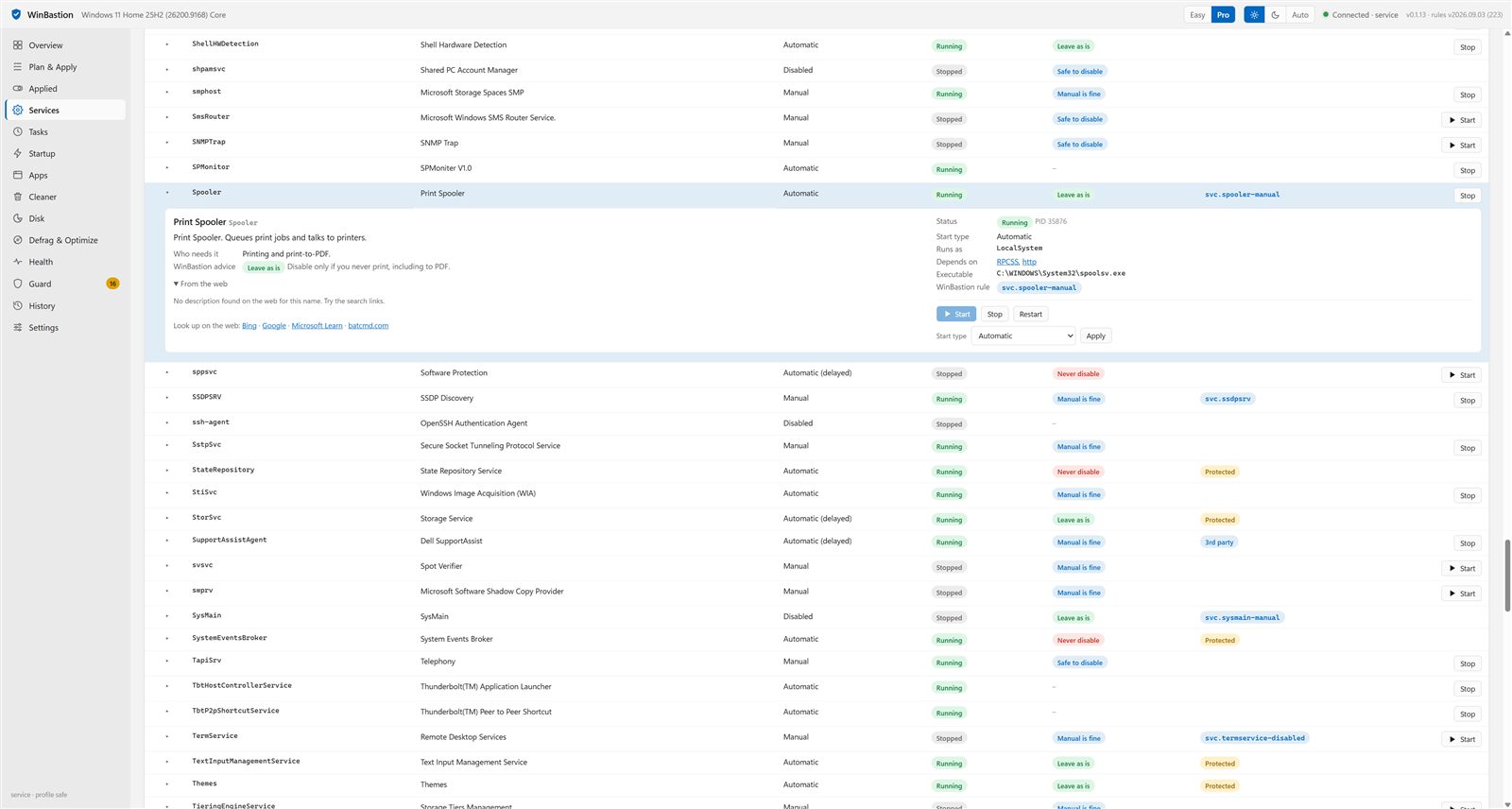
Know what a thing is before you switch it off.
Click any service for what it does, who needs it, WinBastion's advice, a description from the web, dependencies and the executable. Start, stop, restart or change the start type; start-type changes are journaled and undoable. Apps show how much you actually use them before you uninstall.
- Advice chips: Never disable, Leave as is, Manual is fine, Safe to disable
- Protected services can be started but never stopped or disabled
- Usage from Windows' own launch and focus records, no tracking added
The rules we hold ourselves to
PC optimizers earned their reputation with fake error counts, bundled installers and paid tools that keep selling. WinBastion is built on the opposite.
No count of “issues”
You get a timeline, a diff and a named cause. “Nothing is wrong” is a normal, reassuring result.
Measured effect, always undoable
Every action records its previous state and reports what it changed. Dry runs are available where a change moves data.
Honest about editions
Rules say where they work. Telemetry cannot go below “Required” on Home, so WinBastion says so instead of pretending.
No telemetry, no bundling
One signed MSI, nothing else installed, nothing reported home. The service's own CPU and memory cost is shown on the Overview.
SSD-safe by design
No write-heavy “optimisations” on solid-state drives and no registry cleaning, because neither makes a modern PC faster.
Free, funded by tips
Every feature is free for everyone. If it saved you time or space, you can buy the developer a chai. That is the whole business model, and here is how it adds up.
What comes next
Chosen from a study of nineteen competing products, the 2025–2026 Windows changes, and what home users actually complain about. The full list of twenty is public.
Update Guardian
No surprise reboots: warn hours ahead, extend Active Hours on Home, repair failed updates, verify the BitLocker key first.
Settings Keeper
The ~60 privacy, ad and AI toggles Windows keeps flipping back, re-applied after every update and labelled by edition.
Sleep & Wake Detective
Why the PC woke at 3 a.m. and why the laptop cooked in the bag, with the driver or app named.
Before/After Proof
A baseline at install and a measured delta on every action: boot time, idle RAM, background CPU.
Scam Shield
Interrupts when a remote-control program starts, a calm panic button for fake “Microsoft Support” browser locks.
The Timeline
A plain-language diary of what changed and when, so “slow since Tuesday” finally has an answer.
Free for everyone. Funded by people it helped.
There is no Pro tier, no trial and no nag. If WinBastion freed some space, fixed something or just explained your PC to you, a small tip keeps it that way and pays for the next tool.
UPI, cards, PayPal or GitHub Sponsors. Supporters get a badge in the app and a name in About.
Before you install
Is it really free? What is the catch?
It is free, every feature, for everyone. There is no trial, no locked tier and no upsell inside the app. The developer is funded by voluntary tips from people it helped. If you never tip, nothing changes.
Will it break Windows?
The Safe profile only contains changes that are reversible and tested on Windows 11 Home. A restore point is created before applying, every change is journaled with its previous state, and each one can be switched off individually or all at once. Advanced and Expert tiers say what stops working before you apply them.
Does it send anything to the internet?
Two things, both optional: it checks a public GitHub release feed for updates, and when you open a service or app it can fetch a one-paragraph description from Wikipedia. There is no account, no analytics and no crash reporting.
Why does it run as a service?
Keeping your settings in place, checking health on a schedule, installing updates silently and moving files on a disk all need to happen without you sitting at the PC and without a UAC prompt each time. The service idles at around 30 MB and does nothing until it has a reason to.
Should I defragment my SSD?
No, and WinBastion will tell you the same. SSD care sends TRIM and only joins files that are so fragmented that Windows itself would, which it does monthly. The classic modes are offered for hard disks and warn you before running on an SSD.
How do I uninstall it?
From Settings > Installed apps like any other program, or with the Start Menu shortcut. Uninstalling stops and removes the service. Applied changes stay as they are; switch them off in the Applied view first if you want Windows back exactly as it was.